Tag Archives: contiguity principle

Coherence Analysis

Here is a link to view the original Google Doc.

One of the course activities in EDTECH 513 – Multimedia requires learning about and demonstrating working knowledge of the Coherence Principle. This is achieved through the process of conducting a coherence analysis on at least one multimedia e-learning artifact that is not in compliance with the Coherence Principle and then rendering a revised and compliant version of one of the artifacts.  First, it is important to understand what the Coherence Principle is and how a coherence analysis is conducted.

The Coherence Principle, as it relates to multimedia, states that “information in the form of added text, added graphics, and background sound” should not be included in e-learning artifacts (Clark & Mayer, 2016, p. 152). This means all of the swirling transition effects, sweet graphics, and boing-boing sound effects that are available to dress up any mundane PowerPoint are, for the most part, forbidden in the interest of creating e-learning materials that are truly supportive learner success. A coherence analysis is the process of evaluating an e-learning presentation to determine if its design aligns with the requirements of the of the Coherence Principle concerning extraneous or unrelated text, graphics, or sound.

My daughter, K, is in elementary school. She is an inquisitive child and always full of questions. Lately, she has been very interested in anatomy, especially the human eye. Because of this curiosity about the human body, I have spent a lot of time looking at resources about eyeballs.  It should come as no surprise, then, that I decided to conduct a coherence analysis on e-learning artifacts on the human eye.

I analyzed two artifacts that provided information about the human eye: one animated video and one static slide from a SlideShare presentation. The subject matter was the main connection between the two artifacts, not the presentation style. As the father of a young learner I wanted to investigate an artifact aimed at children and, as an academic librarian, one aimed at older learners.  The animated video was directed at young learners. It contained many violations of the Coherence Principle in the form of extraneous graphics, distracting animations, background music, and unnecessary text. The static slide was slightly better. The violations present on the slide pertained to extraneous text and complex graphics where simple graphics would have produced less visual noise for the learner. Here is the original static slide.
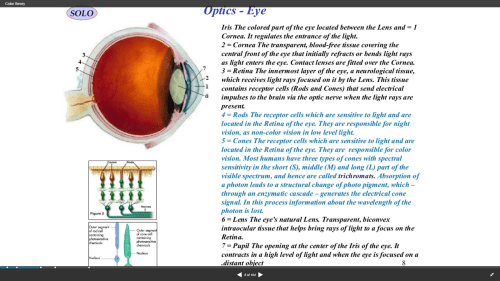
Screenshot 2018-03-16 10.17.59

I revised the static slide in order to make it compliant with the Coherence Principle. I limited the text, reduced the number of graphics, and used a simpler graphic to represent the eye. Additionally, the revised text was added in alignment with the Contiguity Principle, which states that text should be placed near related graphics. Here is the revised slide.
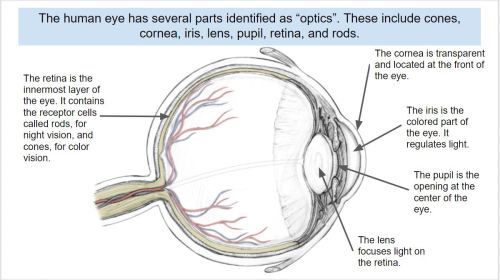
Coherence Theory compliant

The exercise was very beneficial to expanding my understanding of the Coherence Principle. I also enjoyed deconstructing an artifact and making improvements to it that enhance its usefulness to learners.

The creation of this artifact meets AECT standards 1.2 – Message Design, 1.3 – Instructional Strategies, and AECT Revised standard 1.3 Assessing/Evaluating.  I demonstrated competence in the area of message design by analyzing existing e-learning artifacts, deconstructing them, and revising them to meet learner needs according to research-based principles. Additionally, the activity required me to consider the appropriate instructional strategies to use in delivering e-learning content to learners. Finally, the process of conducting a Coherence Analysis and revising the static slide provided me with the opportunity to effectively integrate the e-learning materials into a Google Document for distribution to learners.

Until next time, keep reading!

Best,
Lance

4 Comments

Filed under 1.3 Assessing/Evaluating, Standard 1: Content Knowledge, Uncategorized

Static Multimedia Tutorial

This week in EDTECH 513 – Multimedia, we were tasked with creating a static multimedia tutorial on the topic of our choosing. What is a static multimedia tutorial? Doesn’t multimedia mean sound and movement? I am glad you asked! A static multimedia tutorial is a tutorial that incorporates multimedia principles such as the use of images along with text designed in compliance with research-based design standards such as the contiguity principle. The contiguity principle states that words should be aligned with corresponding graphics. Legends that sit off to the side, away from associated graphics, for example, should not be used. Here is a great article from Moreno and Mayer about the contiguity principle (PDF).

I am an academic librarian, so the static multimedia tutorial I chose to create was library related. We receive lots of questions from new students on how to use the library. Many students come to college having used a high school library that was not supported by a modern library management system (LMS) or a public library system that was both organized using the Dewey Decimal System (we use Library of Congress) and a different LMS geared more towards public libraries. In the interest of serving the students better, I decided a basic, introductory tutorial of just seven steps would be useful. The learning objective for the tutorial is straightforward: “After following the steps in this tutorial, learners will be able to construct a search for book records in the library catalog and analyze the search results to determine a book’s owning library, format, location, availability, and call number.

I used Clarify-it to grab the screenshots and create the step-by-step instructions. The process I followed was the same one I have used to create static tutorials in the past. First, I determined the learning outcome for the tutorial. Second, I worked through the steps and documented each one. Third, I wrote down instructions for each step. Then I opened Clarify-it, formatted the pages, and started harvesting and adding screenshots. After adding the screenshots, I added strategically placed call-out boxes and arrows to draw attention to important sections of the screen. I kept instructional text close to the images (within the call-out boxes and near or connected to arrows pointing to targeted text and webpage icons).  Due to page layout, I had to place call-out boxes further from the targeted sections than I would have liked, but the design made sense given the constraints of the source material. The process was similar to using the screenshot function in Jing, SnagIt, or other screengrabbing software. I have used static tutorials in the past for library instruction, but moved away from them in favor of screencasts. I can understand the appeal of a static multimedia tutorial (no need to pause a video and continue, for example) and think I will make more of them to place on our library’s libguides for students and faculty.

Clarify-it was easy to use and had a decent set of features. I would use it again. Unfortunately, the developers of Clarify-it have decided to sunset the product in favor of pursuing other opportunities. I will need to find another application to use for creating static tutorials. I really do not want to go back to using Word or PowerPoint.

The creation of this artifact meets AECT standards 1.2 – Message Design, 1.3 – Instructional Strategies, and 2.3 – Computer-based Technologies. First, as to Standard 1.2, I followed a systematized method for creating a static multimedia tutorial artifact that can and will be used by students in learning how to successfully use the library catalog. The message was designed in accordance with the contiguity principle, which is a research-based multimedia design principle. Second, as to Standard 1.3, I utilized appropriate instructional multimedia design principles, most notably the contiguity principle and chunking principle. Third, as to Standard 2.3, I used Clarify-it, a web-based software application to create the tutorial and convert it to a PDF. I then uploaded the PDF to a shared Google Drive, set the sharing option to “Anyone with link can view”, and grabbed the embed code to make it accessible via my WordPress blog. The tutorial is ready for incorporation on the library libguides and for formal instruction with students.

Thanks for reading!

Best,
Lance


2 Comments

Filed under 3.1 Creating, 3.2 Using, Uncategorized